 ICC
ICC User guide
How to use ICC Zillas
Everything you need, step by step: bring your trades in, read your numbers, review every trade and turn the lessons into a better next week.
Get started in three minutes
ICC Zillas is a trading journal: it collects your trades, measures them and shows you what is working. It runs in your browser on desktop, tablet and phone.
- Open zillas.iccterminal.trade/app and press Create an account. Every new account gets 7 days with all features, no card needed.
- Go to Accounts & Import and press New account for your broker account, prop challenge or demo.
- Bring your trades in: upload a file (section 3) or run the sync EA in MetaTrader (section 4).
- Open the Dashboard. Your stats, calendar and reports fill in by themselves.
Trading accounts
Each broker account, prop firm challenge or demo is its own account in ICC Zillas, so their numbers never mix unless you want them to.
| Field | What to enter |
|---|---|
| Name | Anything you recognise, e.g. Axi live or FTMO 100K. |
| Platform | MetaTrader 5, MetaTrader 4, cTrader, TradingView, NinjaTrader, Tradovate, Binance, manual or other. |
| Type | Live, Demo, Prop firm (unlocks the prop tracker) or Backtest. |
| Starting balance | The balance before your first imported trade. Used for drawdown in percent. |
| Broker time zone | The time zone of the times in your files. Most MT4 / MT5 brokers use GMT+2 in winter and GMT+3 in summer. |
| Archived | Hides an old account from the dashboard; its trades are kept. |
Your plan decides how many active accounts you can have (Essential 1, Pro 20, Elite unlimited). Archived and Backtesting accounts do not count.
Import trades from a file
Press Import (top bar or on an account card), choose the account, the time zone of the file and the file itself. Press Check the file: you see how many trades were found and a preview. Then press Import.
MetaTrader 5
- In MT5 open View › Toolbox (Ctrl+T) and the History tab.
- Right-click › choose the period (e.g. All history).
- Right-click › Report › HTML and save. Upload that
.htmlfile.
MetaTrader 4
- Open the Account History tab, right-click › All History.
- Right-click › Save as Detailed Report. Upload the
.htmfile.
CSV from any platform
cTrader, TradingView, NinjaTrader, Tradovate, Binance and prop firm dashboards can all export trade history as CSV. ICC Zillas recognises the columns by their names, for example:
| Needed | Column names it understands |
|---|---|
| Symbol | Symbol, Instrument, Item, Ticker, Market, Contract |
| Side | Side, Type, Direction, Action, Buy/Sell (values like Buy, Sell, Long, Short) |
| Open time | Open time, Entry time, Open date, Time opened |
| Entry price | Entry price, Open price, Avg entry |
| Size | Volume, Quantity, Qty, Size, Lots, Contracts |
| Result | Net P&L, Profit, P&L, Realized P&L (or an Exit price) |
| Optional | Close time, Exit price, Commission / Fees, Swap, S/L, T/P, Ticket / Position ID |
Automatic sync with MetaTrader 5 / 4
The ICC Zillas Sync EA sends your closed trades and open positions to your journal every 30 seconds. It is read only: it never opens, changes or closes a trade, and it needs no password, only a private sync token.
- On the Accounts & Import page press Auto-sync on your MT5 or MT4 account and download
ICC_Zillas_Sync.mq5(or.mq4). - In MetaTrader: File › Open Data Folder › MQL5 › Experts (MQL4 for MT4) and copy the file there.
- Open it in MetaEditor (double-click) and press Compile. It must say 0 errors.
- In MetaTrader: Tools › Options › Expert Advisors, tick Allow WebRequest for listed URL and add
https://zillas.iccterminal.trade. - Back in ICC Zillas press Make my token and copy it. It is shown only once.
- Drag ICC_Zillas_Sync onto one chart, paste the token into Sync token and press OK. Keep MetaTrader running; a VPS keeps it on all day.
The first sync brings your whole history. After that, the account card shows Synced with the time of the last sync, your account number and balance.
Add a trade by hand
Press Add trade (sidebar). Choose the account, symbol and side, whether it is closed or still open, the open and close times, entry and exit prices and size.
- Enter the Net P&L after costs. ICC Zillas cannot know your broker's contract sizes, so the result comes from you.
- Add the stop loss (or the planned risk in money) to get the R multiple of the trade.
- Pick a playbook, add tags and notes now, or later on the trade page.
The dashboard
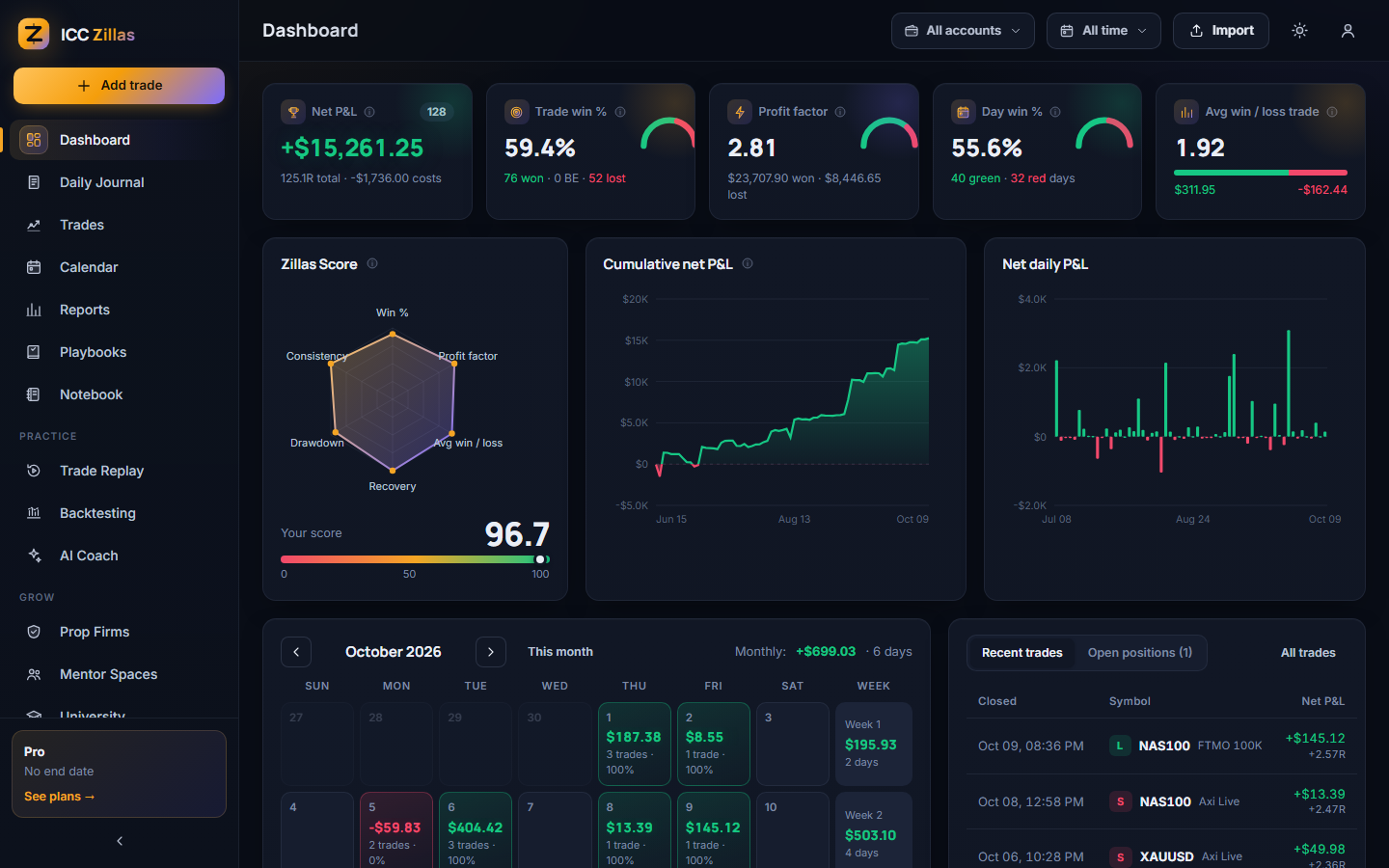
Demo account shown.
| Card | What it tells you |
|---|---|
| Net P&L | Profit after commission and swap of the closed trades in the range, with the total R and the costs. |
| Trade win % | Winners ÷ (winners + losers). Breakeven trades are left out. The gauge shows wins, breakeven and losses. |
| Profit factor | Gross profit ÷ gross loss. Above 1 makes money; 1.5 and more is solid. |
| Day win % | Green days ÷ (green + red days). |
| Avg win / loss | Your average winner divided by your average loser: how big your wins are compared with your losses. |
| Zillas Score | 0–100 from six parts: win %, profit factor, average win / loss, recovery, drawdown control and consistency. It appears after 5 closed trades. |
| Calendar | Every day's P&L, green or red, with weekly totals. Click a day to open it in the daily journal. |
Trades and the trade page
The Trades page lists every trade with its result, size, entry and exit, R, time held, playbook, tags and rating. Filter by side, result, open / closed, playbook, tag or search a symbol or note. Click a column title to sort.
Bulk actions: tick several trades to add a tag, set a playbook, mark them reviewed or delete them.
The trade page
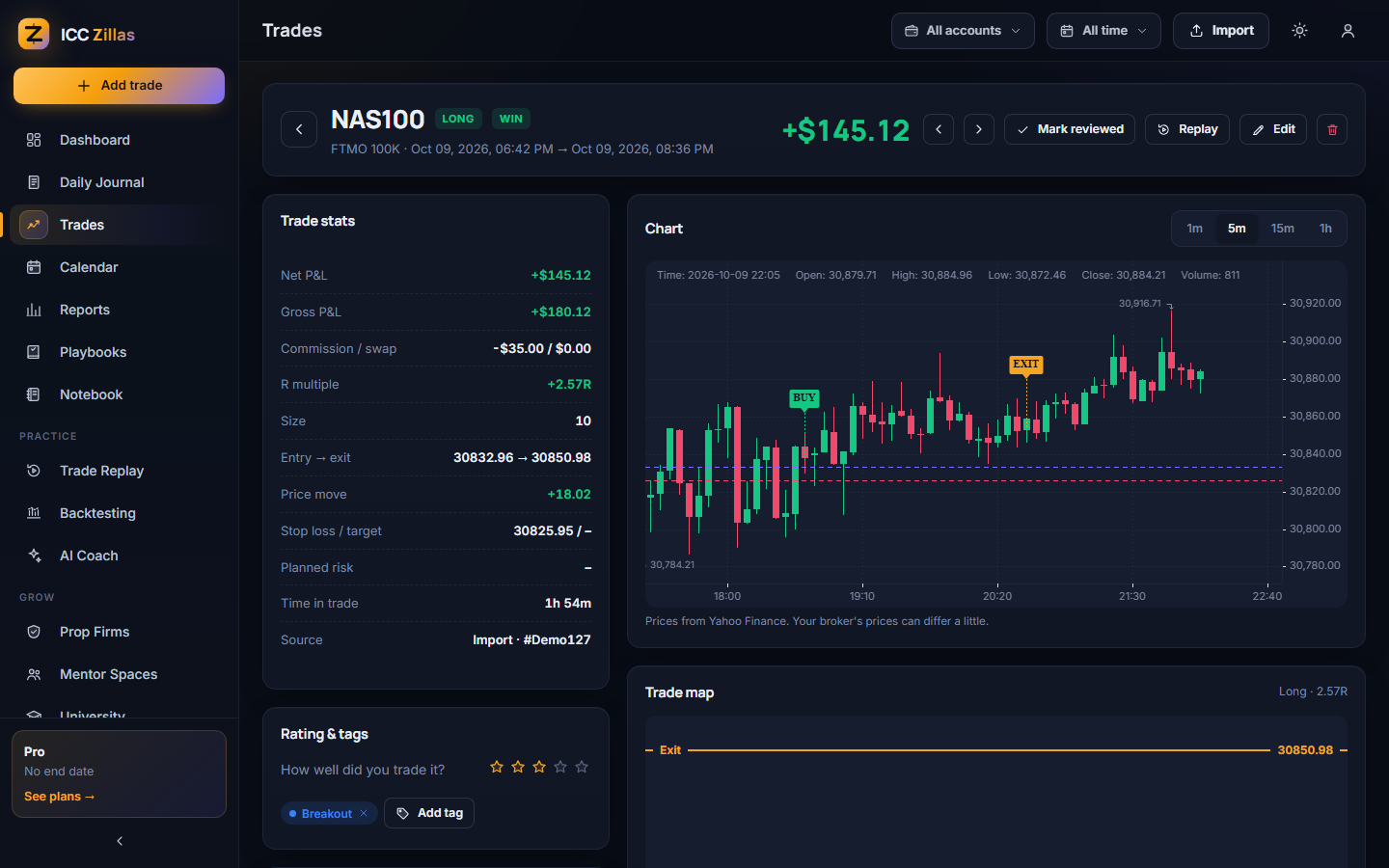
- Trade stats: net and gross P&L, costs, R multiple, size, entry and exit, price move, stop and target, time in trade.
- Chart: real candles around the trade (1m, 5m, 15m, 1h) with your entry, exit, stop and target.
- Rating & tags: rate your execution 1–5 stars and tag the setup, the mistakes and your emotions. Each tag gets its own report.
- Playbook: pick the playbook and tick the rules you followed.
- Notes and screenshots: write what you saw and why; drop, paste or upload chart screenshots.
- Mark reviewed when you are done, and use the arrows to go to the next trade.
Daily journal & notebook
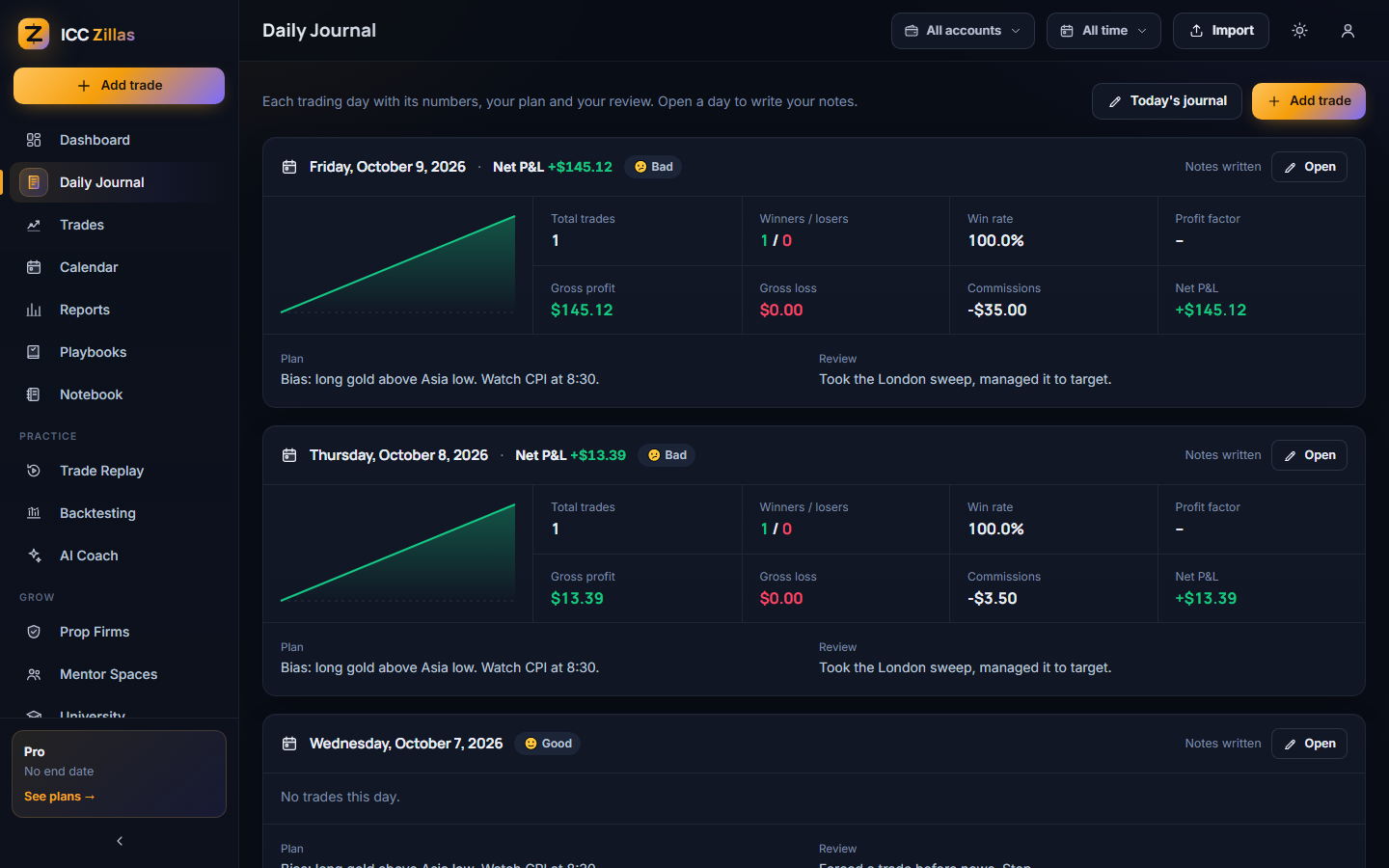
Every trading day appears with its P&L curve and stats. Press Open (or Today's journal) to write:
- Mood and a pre-market plan: bias, levels, news, what you are waiting for.
- A checklist you tick before trading (edit it as you like).
- An end-of-day review, lessons, and whether you followed your plan.
The Notebook collects every note you wrote, with a search box, so you can read your plans and lessons again.
Reports & calendar
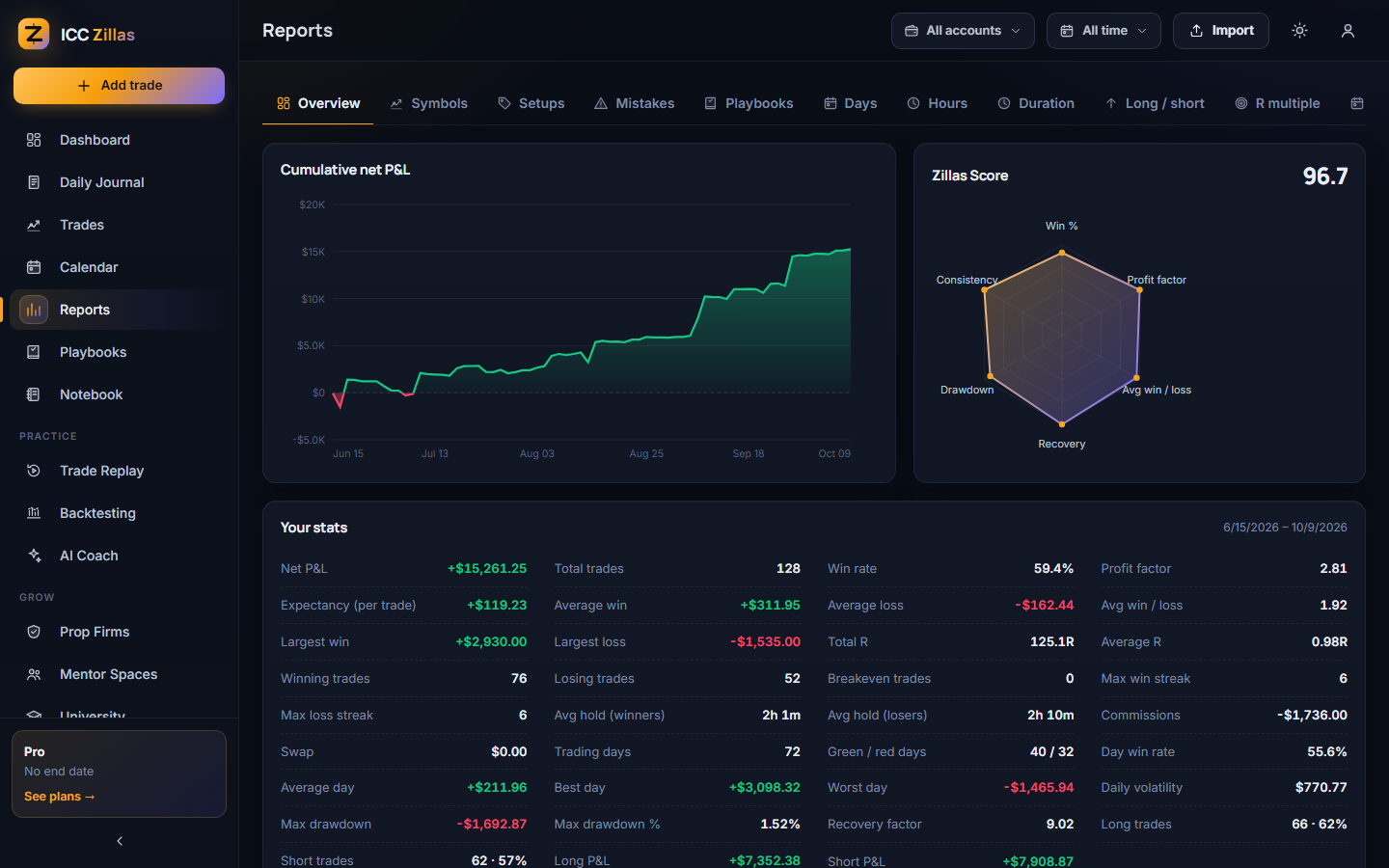
Overview shows the cumulative P&L, the Zillas Score, more than 30 statistics, the daily P&L and a year-long consistency heatmap. The other tabs split your results by:
Symbols · Setups · Mistakes · Playbooks · Days · Hours · Duration · Long / short · R multiple · Months · All tags · Emotions · Accounts
Each tab shows the best and worst group, the most traded and the highest win rate, a bar comparison (switch between net P&L, win %, trades, average P&L and profit factor) and a full table.
The Calendar page shows one month big, with the month's P&L, trading days, green-day rate and best and worst day.
Playbooks
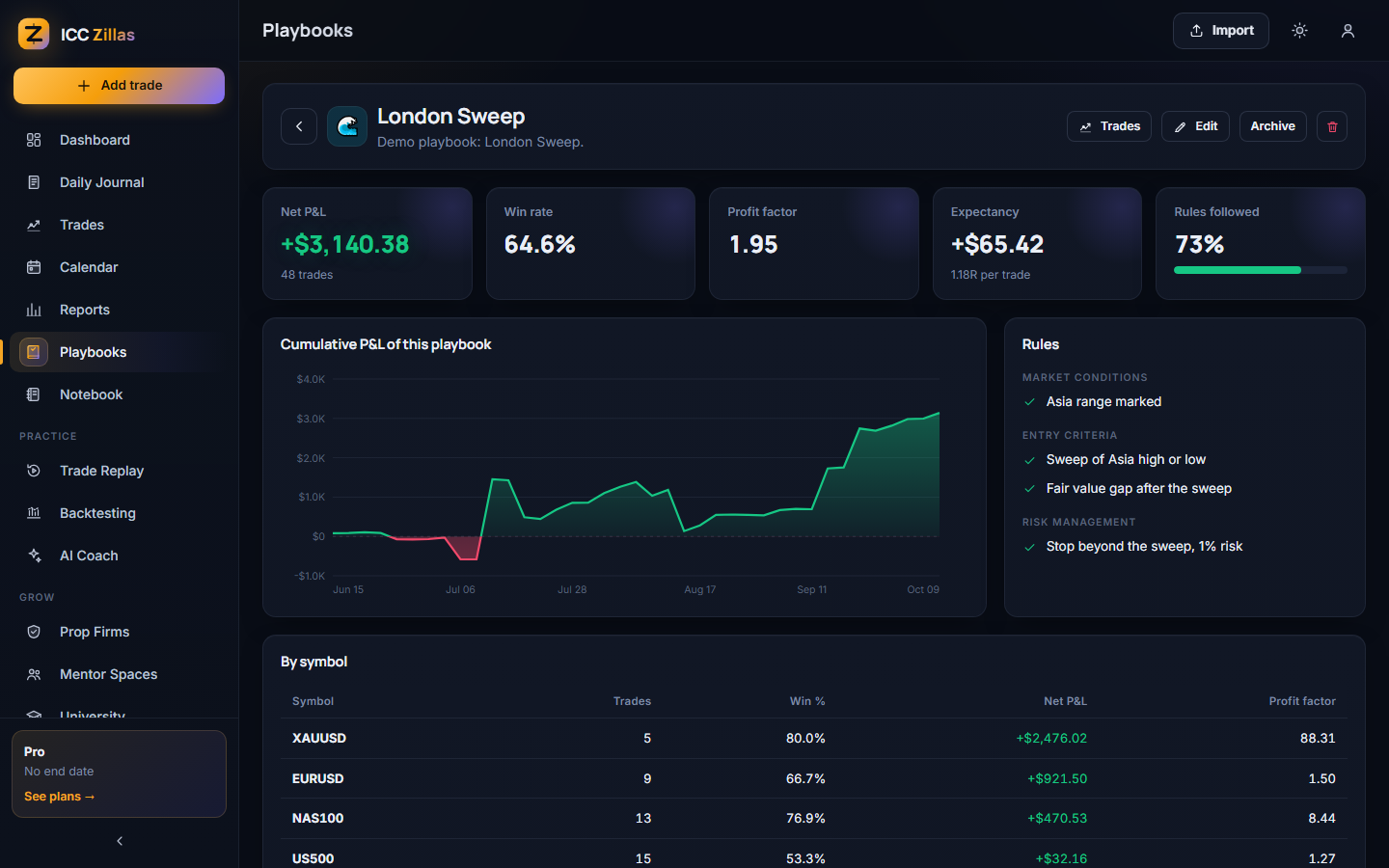
A playbook is one setup you trade, written down with its rules in four groups: market conditions, entry criteria, exit criteria and risk management.
- Press New playbook, start from a template (ICT Silver Bullet, Opening Range Breakout, VSA Imbalance Shift) or write your own.
- On each trade choose the playbook and tick the rules you followed.
- The playbook page shows its net P&L, win rate, profit factor, expectancy, rules followed, equity curve and results by symbol.
Trade replay
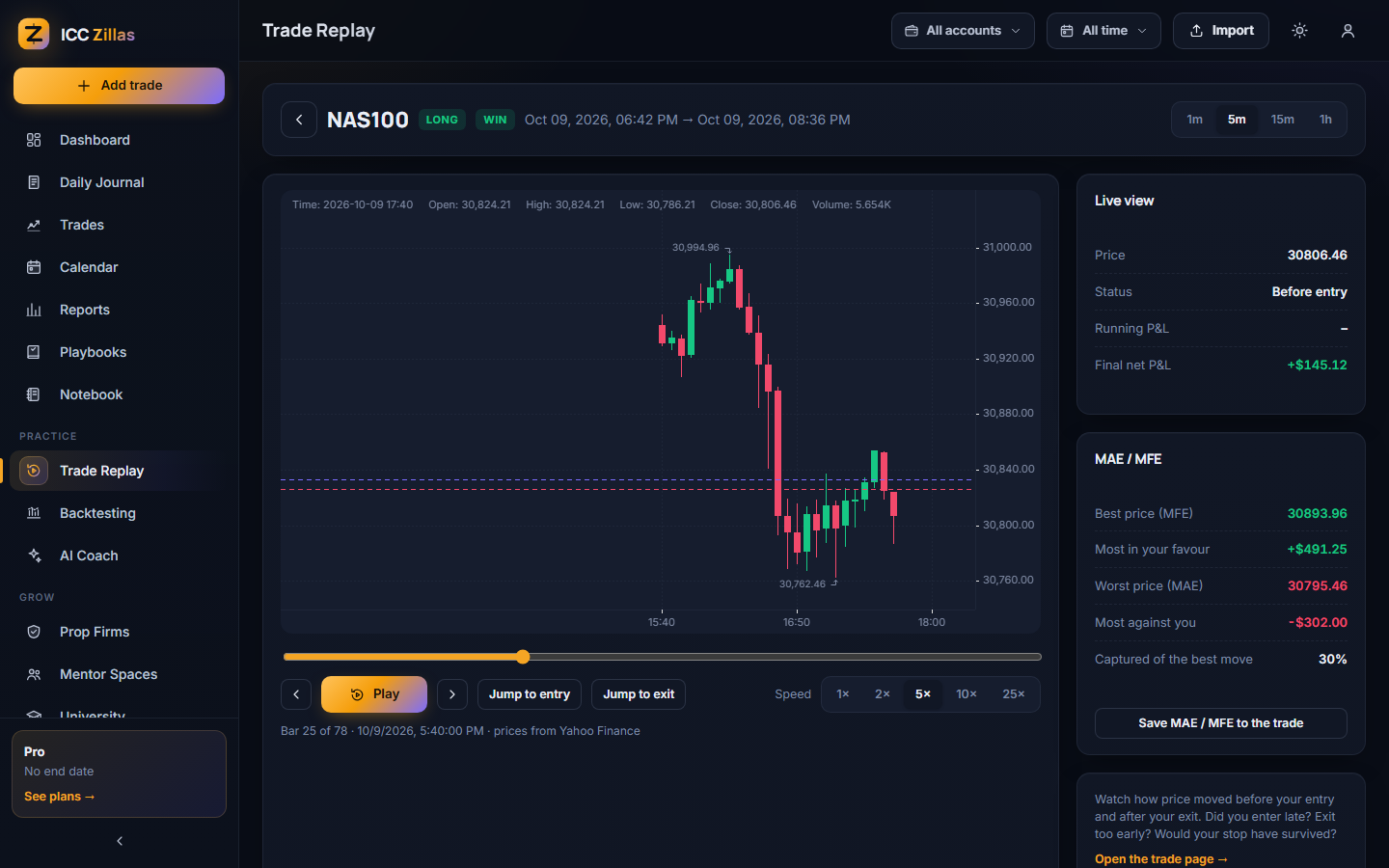
Open Trade Replay and pick a trade, or press Replay on any trade page. The chart starts a little before your entry:
- Play / pause, one bar back or forward, and the slider to jump anywhere.
- Speed from 1× to 25× and the timeframe (1m, 5m, 15m, 1h).
- Jump to entry and Jump to exit.
- Live view: the price, whether you were in the trade, and the running P&L.
- MAE / MFE: the worst and best price while you were in the trade, what that was worth, and how much of the best move you caught. Press Save MAE / MFE to the trade to keep them.
Prices come from free market data (Dukascopy, Yahoo Finance, Binance). Your broker's prices can differ a little; futures prices are lined up with your entry.
Backtesting
- Open Backtesting, choose the market, a start date, how many days and the timeframe, and press Start session.
- Press Play (or step bar by bar). When you see your setup, set the lots, stop and target in points and press Buy or Sell.
- The trade closes at your stop or target by itself, or press Close. A bar that touches both counts as the stop.
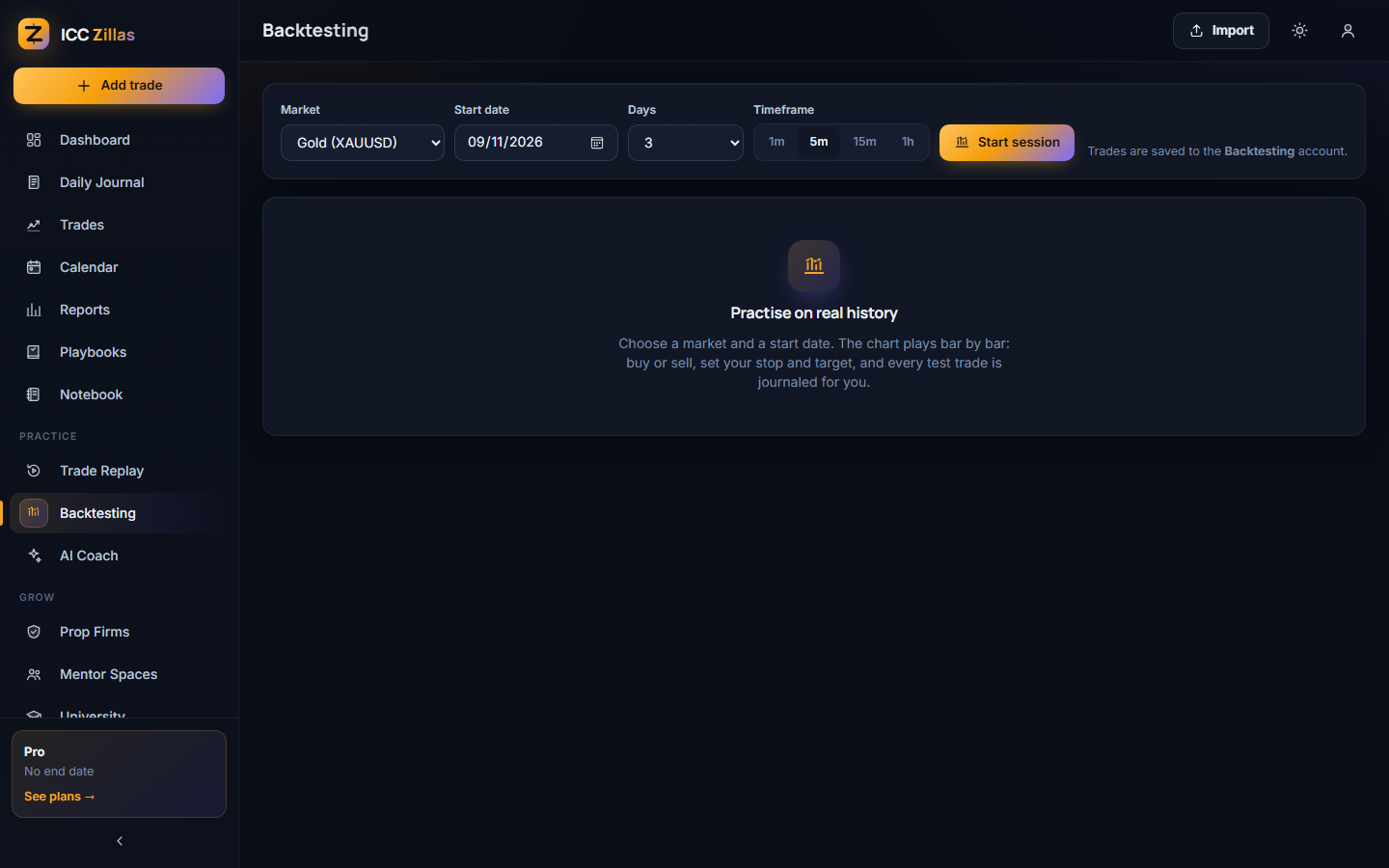
Every test trade is saved to your Backtesting account. Pick that account in the account picker to see its own dashboard and reports; it never mixes with your real stats.
AI coach
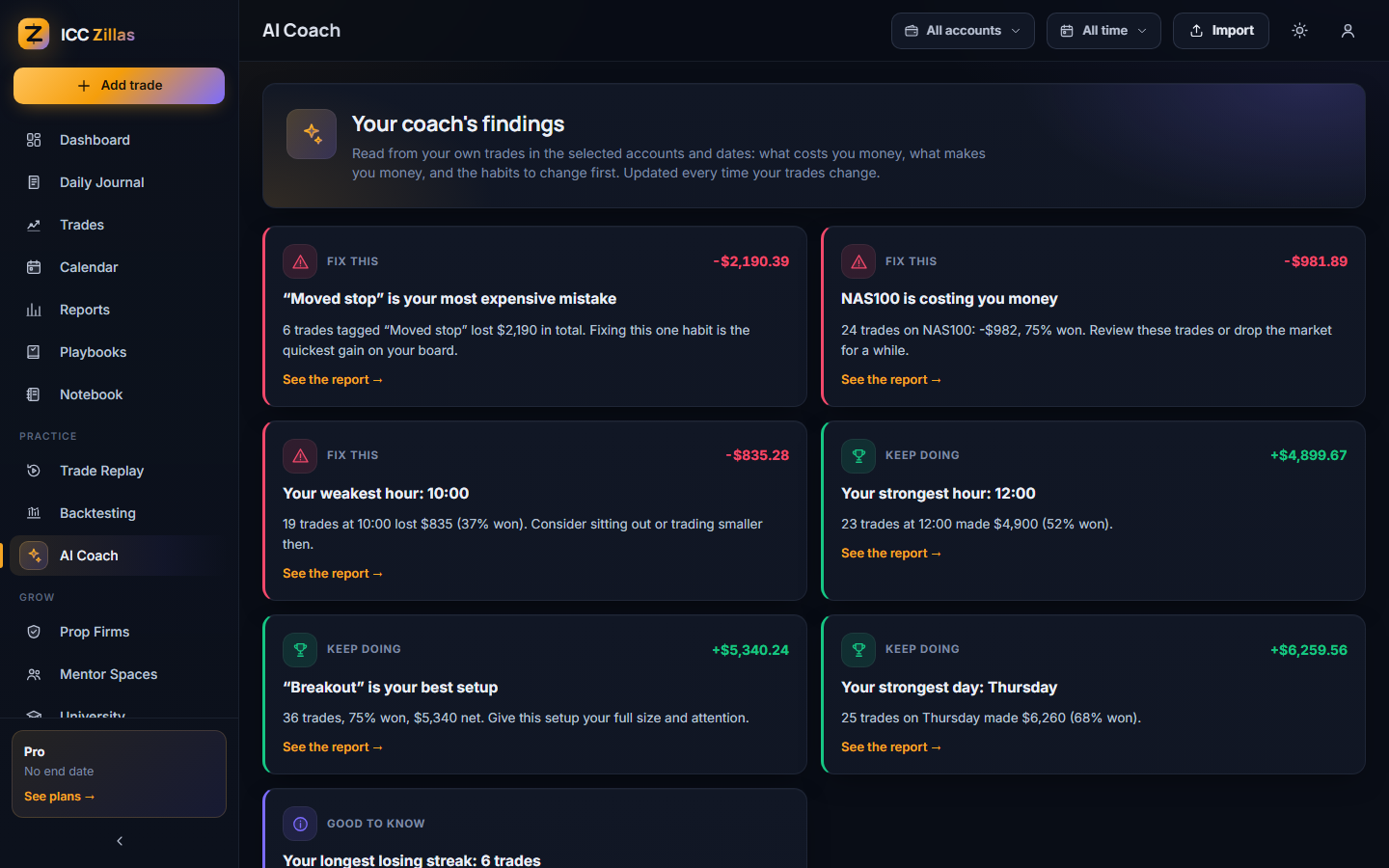
After 10 closed trades the coach reads your trades in the selected accounts and dates and writes its findings in three kinds:
- Fix this: your most expensive mistake tag, trades taken right after a loss, overtrading days, holding losers too long, your weakest hour and day, a symbol that costs you money, oversized positions.
- Keep doing: your best setup, your strongest hour and day, letting winners run.
- Good to know: long against short, trades without a stop, your longest losing streak.
The more you tag your setups and mistakes, the more useful the coach becomes. A chat with an AI that knows your journal is coming.
Prop firms
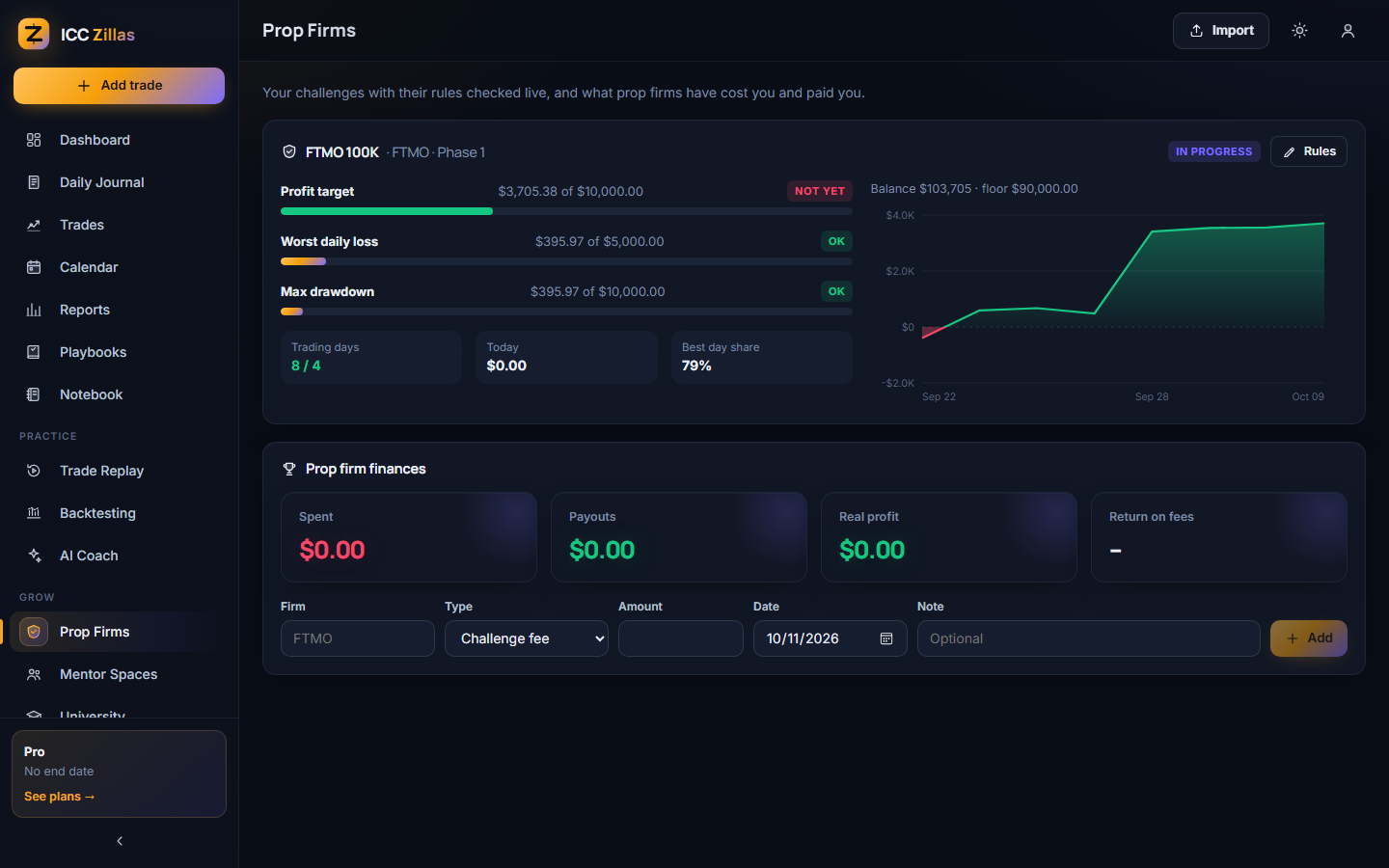
- Create an account with the type Prop firm.
- On the Prop Firms page press Set rules: firm, phase, account size, profit target, daily loss limit, max drawdown, the drawdown type, minimum trading days and a consistency rule if your firm has one.
Every trade is checked against the rules: the progress bars turn red near a limit, and the badge shows In progress, Target reached or Breached.
| Drawdown type | Meaning |
|---|---|
| Static | Measured from the starting size; the floor never moves. |
| Trailing | Measured from the highest balance; the floor moves up with your profits. |
| Trailing end of day | Like trailing, but the highest balance is taken at the end of each day. |
Prop firm finances keeps every challenge fee, reset, subscription and payout, and shows what you spent, what you were paid and your real return.
Mentor spaces
A space shares journals between a mentor and students, or a group of friends.
- Create a space (Elite plan) and share its invite code. Anyone can join with the code.
- The leaderboard ranks members by total R, so account size does not matter (7, 30 or 90 days).
- The trade feed shows members' recent trades; click one to read its notes and write feedback.
- Untick Share my trades here to keep your trades private in that space.
University
Short, practical courses on journaling, risk management, trading psychology and prop firm challenges. Open a course, read each lesson and press Mark as done; your progress shows on every course card.
Settings & plans
- Settings: your name, password, light or dark theme, and your tags (click a tag to delete it).
- Plans: Essential, Pro and Elite, monthly or yearly. Your plan and its end date show at the bottom of the sidebar.
- Theme: the sun / moon button in the top bar switches between dark and light at any time.
Glossary
| Term | Meaning |
|---|---|
| Net P&L | Profit or loss after commission, swap and fees. |
| Win rate | Winning trades ÷ (winning + losing trades). |
| Profit factor | Gross profit ÷ gross loss. |
| Expectancy | The average result per trade: net P&L ÷ number of trades. |
| R / R multiple | A trade's result in units of its planned risk. +2R made twice what it risked; -1R lost the full risk. |
| Max drawdown | The biggest fall of your balance from a high point. |
| Recovery factor | Net profit ÷ max drawdown: how well you come back from losses. |
| MAE / MFE | Maximum adverse / favourable excursion: the worst and best price during the trade. |
| Day win rate | Green days ÷ (green + red days). |
| Breakeven (BE) | A trade that closed at about zero (within half a cent). |
Problems & answers
My trades show the wrong times
MetaTrader files use your broker's server time. Set the account's broker time zone (usually GMT+2 / GMT+3), or choose it in the import window and press Check the file again before importing.
The import says "Columns not found"
Your CSV uses column names we do not know yet. Rename the headers to Symbol, Side, Open time, Entry price, Size and Net P&L (see section 3), or send us a sample file.
The sync EA shows "Add … in Tools › Options"
MetaTrader blocks web requests until you allow them: Tools › Options › Expert Advisors, tick Allow WebRequest for listed URL and add https://zillas.iccterminal.trade.
The sync EA says the token was not accepted
The token was replaced or mistyped. Make a new token on the Accounts page and paste it into the EA's Sync token input.
Replay says there is no price history
Forex, gold and index data for today arrives after the day closes, very old dates may not be available, and some symbols (single stocks) are not covered yet. Crypto works for today too.
A trade shows no R multiple
Add its stop loss or its planned risk (money) on the trade page with Edit.
"Your plan does not include this"
Some tools (prop tracker, replay, backtesting, mentor spaces) depend on your plan. See the Plans page in the app.
I forgot my password
On the log in screen press Forgot password?, enter the email of your account and press Send me a reset link. Open the email from ICC Zillas (look in spam too) and press Choose a new password. The link works for 1 hour and only once; after saving you are logged in, and other browsers have to log in again.
I did not get the confirmation email
Look in your spam or promotions folder for an email from [email protected]. In the app, the yellow bar at the top has Send the link again. Accounts made with Google or Facebook are confirmed already.
How do I delete my account and data?
Contact us at [email protected] and we will delete everything within 30 days.
Ready to see your edge?
Create your free account and bring in your first trades. Free for 7 days.
Start free